
Draw manual regions
At a glance
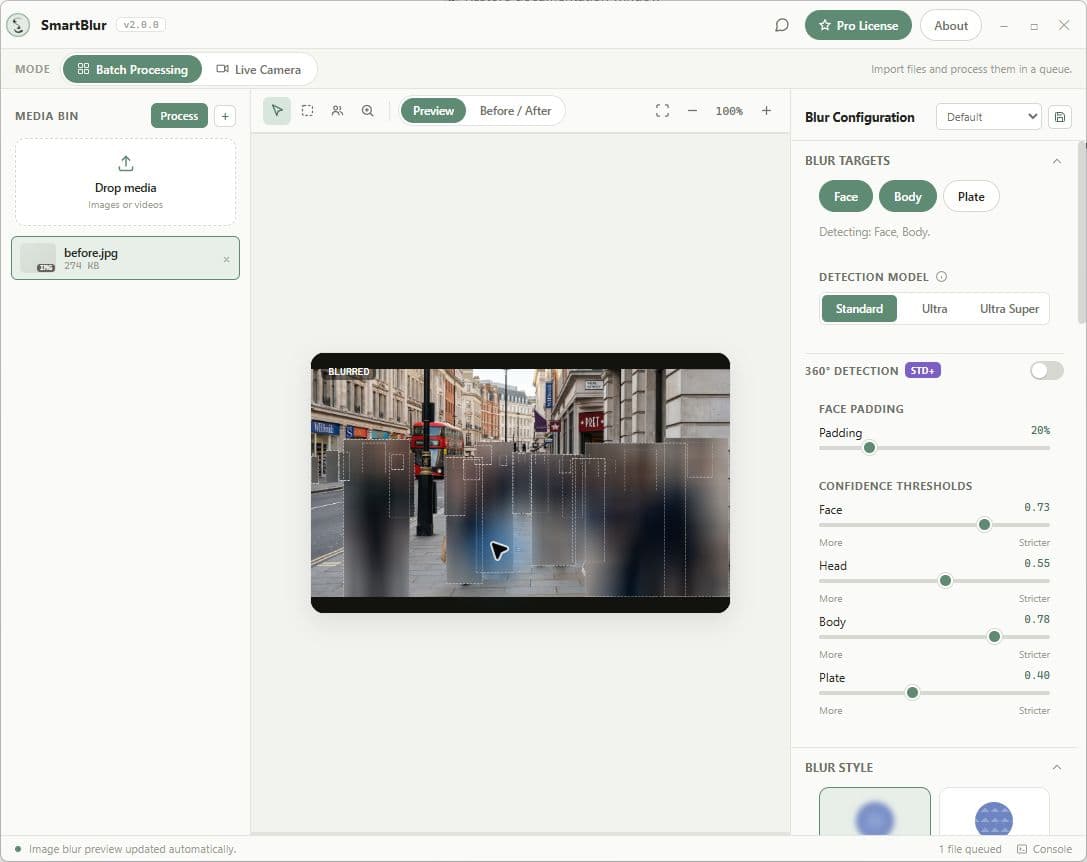
Cover details automatic detection does not classify: a screen, document, name tag, or missed face. Manual rectangles and ellipses work alongside detected regions.
Step by step
- 01
Open an image or pause a video at a useful frame. Select the Draw Blur Region tool above the preview.
- 02
Drag to cover the private detail. Select the region to move or resize it; choose an ellipse for a rounded area.
- 03
Choose the effect and check the full protected area. Delete an unwanted region or clear the manual list to start again.
- 04
Export a separate copy. For video, watch the whole clip to make sure the sensitive detail never leaves the fixed region.
Before you share
Manual regions in the current desktop app stay at fixed clip coordinates. They do not automatically track moving people or objects.
Full desktop guide (English)
When to Use Manual Blur
Automatic detection is probabilistic and does not classify every kind of identifier. Add a manual region when you need to cover a custom area such as:
- A face turned away or partially hidden
- A document on a desk
- A name tag or computer screen
- A logo or sign
Manual regions work together with automatic detection. Always review the combined output before sharing it.
Getting Started
- Load an image or video in Batch Processing.
- Select the media item and pause video playback at a useful review frame.
- Choose the Draw Blur Region tool above the monitor.
- Click to place a region or drag to draw it over the custom area.
Drawing Tools
| Shape or action | How it works | Good for |
|---|---|---|
| Rectangle | Click or drag to place a rectangular region | Documents, screens, signs, name tags |
| Ellipse | Select an existing region and change its shape to ellipse | Rounded areas or faces automatic detection missed |
| Move | Drag a selected region | Correcting its position |
| Resize | Drag a selected region's handles | Correcting its coverage |
Managing Shapes
- Change shape — select a region, then choose Rectangle or Ellipse
- Delete one — select a region and choose Delete selected
- Clear all — choose Clear all in the Manual Blur Regions panel
Video Behavior
A manual video region stays at the same normalized coordinates throughout the clip. It does not follow motion and has no sticky tracking mode. If the subject moves outside the region, use automatic detection or another reviewed redaction workflow rather than assuming the fixed region will follow it.
Manual regions are separate from Selective Blur. Standard Selective Blur lets you choose detected faces in one image at a time. Pro adds identity-based rules across image, video, batch, and live sources.
Tips
- Use Rectangle for quick redaction of documents and screens.
- Use Ellipse for rounded areas.
- For video, review the full clip to confirm a moving identifier does not leave the fixed region.
- You can mix manual regions with automatic detection; both are applied on export.