
Fix a setup or processing issue
At a glance
Start with one small file or a short clip. Note your app version, operating system, and installer source so that any report is easy to reproduce.
Step by step
- 01
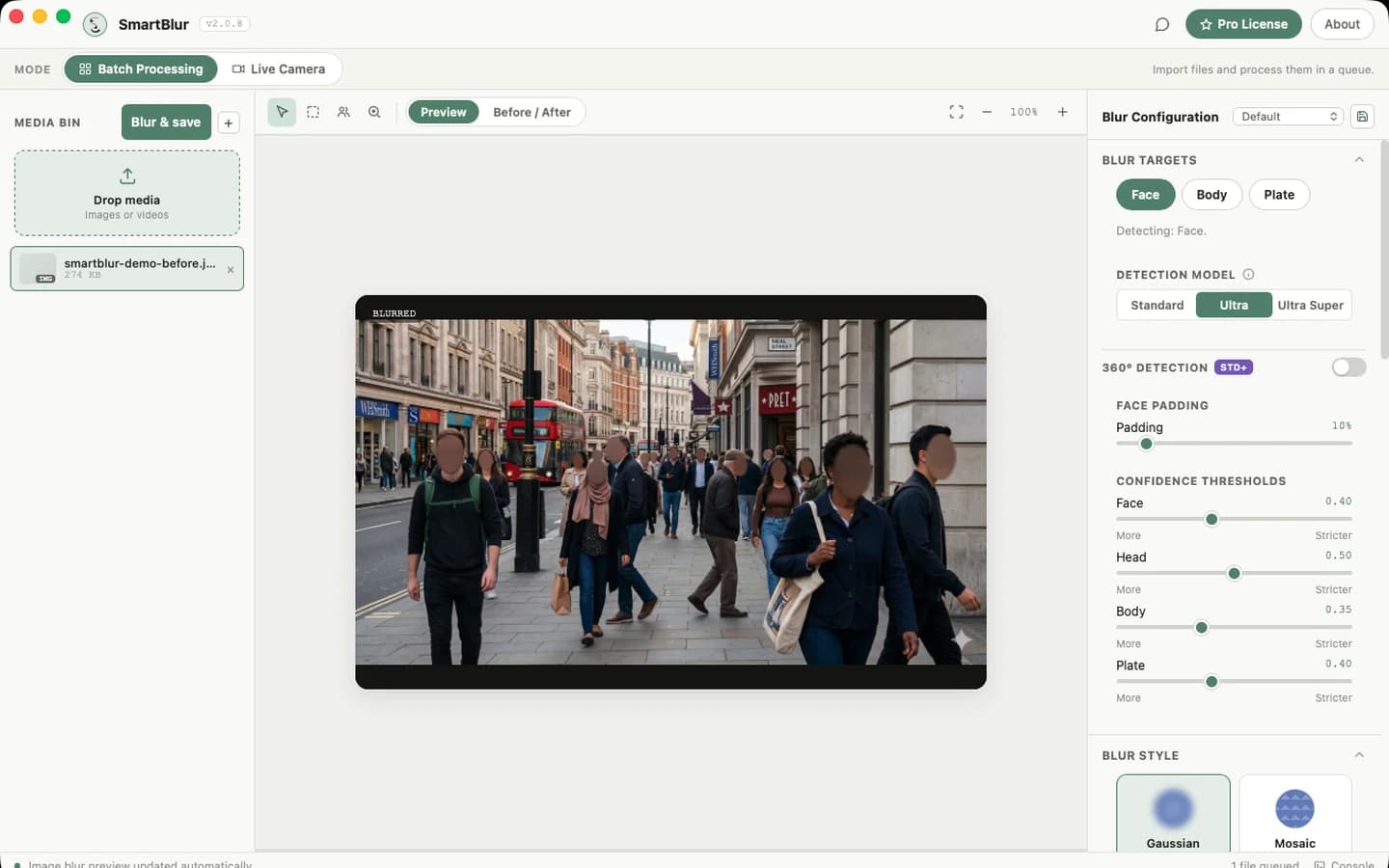
If a face is missed, check that its target is enabled. Try another model or a slightly lower confidence threshold. More blur intensity will not find a missing face.
- 02
If video processing is slow or fails, test a shorter supported clip, check free disk space, and disable targets you do not need. Keep the source file safe.
- 03
If a camera is unavailable, check permissions and close other camera apps. If SmartBlur Camera is missing, confirm the website build and restart the receiving app.
- 04
If the problem remains, record the exact steps and visible error. Include app and system versions in your support request, without camera passwords or private source media.
Before you share
Keep a reproducible example, not a large unreviewed upload. Only send original images through a consented detection report when you are authorized to share them.
Full desktop guide (English)
Troubleshooting
Start with the bottom status bar and Console. SmartBlur reports model loading/readiness, automatic preview updates, processing progress, live-setting application, output saves, cancellations, and failures there.
A face, body, or plate is missed
- Confirm its target is enabled.
- Lower only that target’s confidence by 0.05 and process again.
- Change Standard → Ultra. If necessary, try Ultra Super.
- Enable 360° for rotated/sideways/overhead scenes.
- Use a clearer/higher-resolution source when the subject is only a few pixels wide.
- For moving video, check several frames; one frame may be blurred by motion.
Padding and intensity cannot create a missing detection. Adjust those only after a box/blur appears.
Too many objects are blurred
- Raise the affected target confidence by 0.05.
- Disable Body or Plate when it is not required.
- Turn off 360° if the footage is normally upright.
- Compare Standard and Ultra on the same representative scene; the best model is the one that gives the required recall with manageable false positives.
Blur exists but coverage is too small
- Increase Face Padding in small steps.
- Check fast motion, hair, ears, profile faces, and people near frame edges.
- Choose a stronger visual style/intensity only after the region itself is large enough.
Blur coverage is correct but the edge looks too hard
- Increase Edge Feather in small steps. The range is 0–40% and the default is 8%.
- Feather softens the transition outside the protected core; it does not weaken pixels inside that core.
- Increase Padding instead when sensitive pixels are outside the fully protected region.
- Edge Feather applies to Gaussian, Mosaic, and Solid Shape. It is disabled for Overlay Image because the artwork keeps its own alpha edge.
Preview did not update
- Wait for the model/preview message in the status bar.
- Select the media item again.
- Confirm there is no active cancellation or failed job in Console.
- A model change is slower than a threshold or padding change because a different model session must load.
- Reopen SmartBlur if the worker exited unexpectedly, then test one small image before retrying a large batch.
Single-frame video preview is unavailable or failed
- Confirm the video was added from local disk in the desktop app. A browser-only item or one without a local file path cannot use this preview.
- Wait for an active Blur & save export or another frame preview to finish.
- Move the playhead to a decodable frame, then click Single-frame preview again.
- Changing a processing setting clears the old frame result by design; run a new frame preview to test the new value.
- Check Console for codec or worker errors. Preview support depends on the bundled media runtime being able to decode the source.
- Remember that a single-frame result does not use full-video temporal tracking. Review multiple timestamps and the complete exported video.
“Waiting for live frames from the configured source”
- Verify the webcam/RTSP source in another trusted app.
- For webcams, close apps that already use the camera. On Windows, check camera access for desktop apps. On macOS, allow SmartBlur under System Settings → Privacy & Security → Camera.
- For RTSP, confirm the full URL, path/channel, credentials, host, and port.
- The URL must start with
rtsp://orrtsps://. - Check firewall, VPN, VLAN, camera viewer limits, and whether the PC is on the correct network.
- Try a lower-resolution camera sub-stream or a supported codec.
- Stop Stream, correct the source, then Test Connection again.
The earlier 'NoneType' object has no attribute 'startswith' failure came from treating an absent optional overlay value like text. Current SmartBlur normalizes an unset overlay safely; if you see that exact error, update/reinstall the current version and include the app version in your report.
SmartBlur Camera is missing or black
- Confirm the active plan is Standard, Pro, or the 7-day Pro trial and that the processed preview is already receiving frames.
- Confirm you installed a supported website build. The Microsoft Store package does not include SmartBlur Camera.
- On macOS, use the current Mac website build, keep SmartBlur.app in Applications, and approve SmartBlur Camera under System Settings → Privacy & Security if prompted.
- After approving or updating the macOS Core Media I/O extension, quit and reopen QuickTime, Zoom, Teams, OBS, or the other receiving app so it refreshes its camera list.
- Select SmartBlur Camera, not the physical webcam, in the receiving app. Keep SmartBlur and its processed preview running.
- If macOS explicitly reports that a restart is required, restart the Mac before testing again.
Live controls do not seem to change the stream
- Stop dragging and wait about 400 ms for Live settings applied.
- Confirm the relevant target is enabled.
- Model changes may briefly pause processed frames while the new model loads.
- Read the status/Console for settings_failed details.
- If the source itself stopped delivering frames, stop and retest it; changing blur settings cannot repair a disconnected camera.
Processing is slow
- Use Standard instead of Ultra/Ultra Super when accuracy remains acceptable.
- Disable unneeded targets and 360° detection.
- For RTSP, use a camera sub-stream or lower resolution/frame rate.
- Keep the app and source on fast local storage/network.
- Update Windows and GPU drivers. SmartBlur’s packaged Windows runtime can use DirectML where supported; otherwise processing still works on available providers but may be slower.
- Test one short representative clip before committing to a long batch.
Output file is missing or cannot be opened
- Check the configured Output folder and filename prefix/suffix.
- Confirm the destination exists and is writable.
- Disable Skip already processed if it incorrectly matches the source.
- Use Reveal output to open the containing folder.
- For live recording, choose a recording folder before starting and stop recording cleanly so the file is finalized.
- Check available disk space and whether antivirus or another program locked the destination.
License activation fails
- Remove accidental spaces from the key.
- Confirm internet access for initial activation.
- If the device limit is reached, deactivate an old device first.
- If offline entitlement was previously cached, verify the computer's date and time are correct.
- Contact [email protected] with the error, app version, and Windows or macOS version. Do not send private media or an unmasked license key unless support provides a secure method.
Reporting a reproducible problem
Include:
- SmartBlur version shown in the title bar/About panel
- Windows or macOS version, processor/GPU, and Apple silicon generation when applicable
- Mode: Batch Processing or Live Camera
- Source type and format/codec (but redact RTSP credentials)
- Selected preset, model, targets, thresholds, padding, 360°, and blur style
- Exact status/Console error
- Minimal steps that reproduce it
Do not attach private footage unless you have authorization and a secure transfer method. A synthetic or cropped non-sensitive sample is preferable.