
Video preview & export
At a glance
Check key moments before processing, then review the complete exported video. Free supports video files up to 10 MB; paid plans remove the plan-based video-size limit.
Step by step
- 01
Import a supported video and move through the timeline. Normal playback shows the source, not proof of the final redaction.
- 02
Choose targets, model, padding, and effect. Where supported by your release, use single-frame preview on difficult moments and scene changes.
- 03
Choose a separate output folder and run Blur & save. With Pro identity matching, review People & rules after analysis, apply your decisions, and export the updated result.
- 04
Watch the entire saved clip. Check fast motion, crowd entrances, cuts, reflections, and the audio. Visual redaction does not remove voices or spoken names.
Before you share
One good preview frame cannot verify a whole video. Fixed manual regions do not follow motion. Test a short representative clip before a long export.
Full desktop guide (English)
Blur Videos
Release availability: Single-frame preview is included in macOS releases from 2.1.2 onward. The Windows 2.1.0 build predates this feature; on Windows, use a release whose Release Notes list it.
Expected behavior
Adding a video creates a queue item and loads it in the monitor. Normal playback shows the source clip. Single-frame preview lets you process the frame at the playhead without rendering the complete video. The final blur is produced only when you choose Blur & save. Progress, processed/written frame counts, completion, cancellation, and failures appear in the workspace status/Console.
Free processes video files up to 10 MB. Standard and Pro have no video-size limit; practical processing still depends on available disk, memory, hardware, codec support, and review time.
Preview and process a video
- Add an MP4 or MOV from Drop media, +, or drag-and-drop, then select it in the Media Bin.
- Use playback or the timeline to move the playhead to a representative moment.
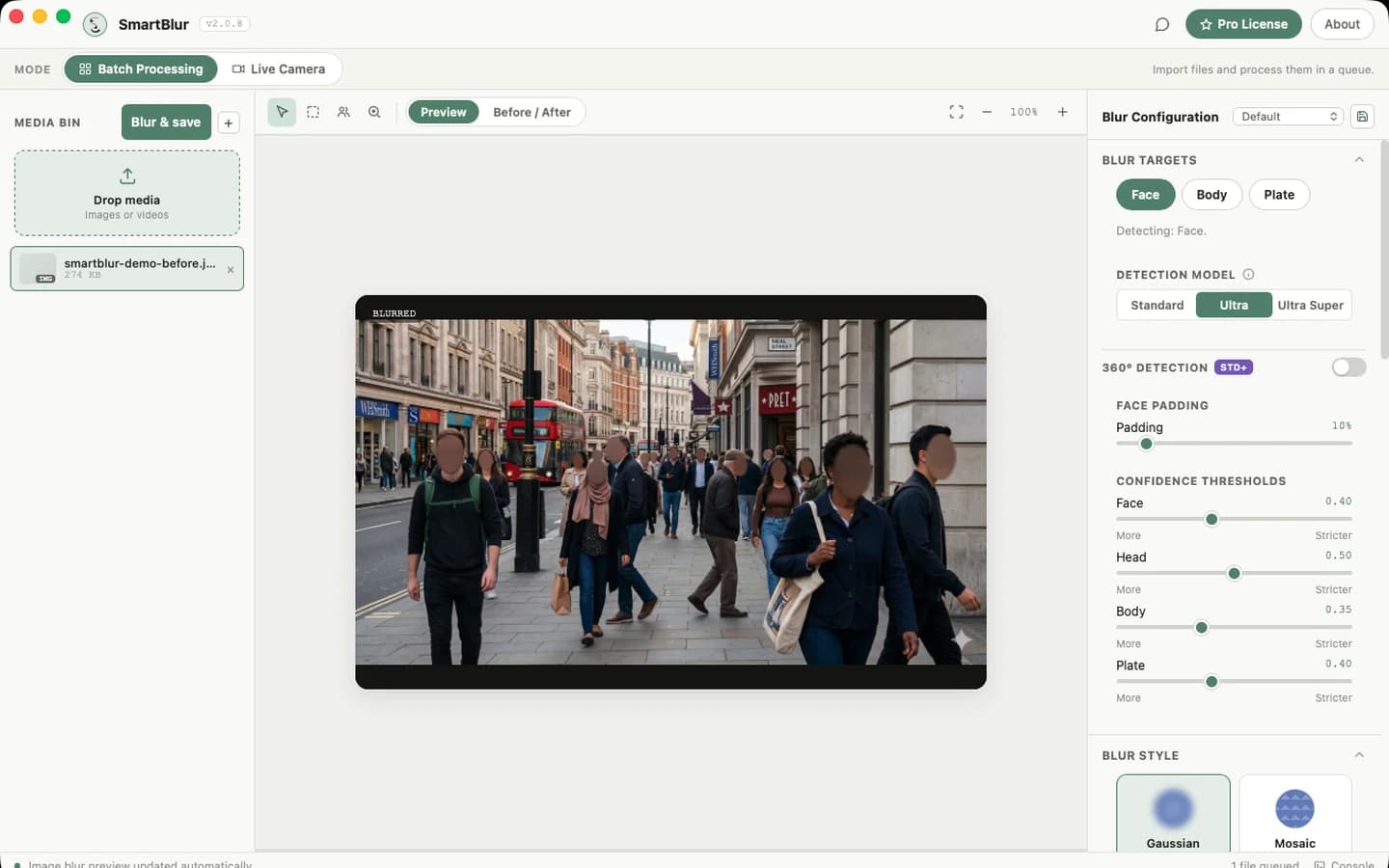
- Choose targets, model, confidence, padding, blur style, intensity, and Edge Feather. Face and Body are available on every plan; Plate requires Pro. Ultra and 360° Detection require Standard or Pro, and Ultra Super requires Pro.
- Click Single-frame preview in the transport bar, to the right of the time display.
- Inspect the source and processed frame in Before & After. Repeat at the beginning, middle, end, difficult moments, and scene changes.
- Choose the output folder, filename prefix/suffix, video quality, and metadata preference.
- Click Blur & save to process and export the complete video.
- If needed, click Cancel. SmartBlur sends cancellation to the active local job and reports the final cancelled state.
- Open the saved file and check the entire result before distribution.
What Single-frame preview does
Single-frame preview processes only the frame at the current playhead using the current settings. It is an approximation and does not use full-video temporal tracking; Blur & save does. A good result on one frame does not prove coverage throughout the clip.
The button is available only when a video added from local disk is selected in the desktop app. It is disabled when there is no suitable video, an export is running, or another frame preview is still processing. Changing a processing setting clears the displayed frame result; click Single-frame preview again to evaluate the new settings. Previewing does not change the source file.
Model and performance choices
| Priority | Start with |
|---|---|
| Fastest throughput | Standard, required targets only, 360° off |
| Balanced CCTV | On Standard or Pro, test Office CCTV / Ultra |
| Difficult street or crowd footage | On Pro, test Street Footage / Ultra Super and review Plate results |
| Distant faces | Lower Face slightly; on Standard or Pro, then test Ultra |
| People facing away | Add Body; tune Body separately |
Processing time depends on resolution, duration, frame rate, target count, model, 360° mode, scene density, output quality, and available hardware. Run a short representative clip first; do not estimate a long batch from a single easy frame.
Review strategy
Inspect at least:
- the first and last seconds;
- every scene/camera change;
- bright and dark sections;
- fast motion and motion blur;
- crowded sections;
- people/vehicles entering at frame edges;
- reflections, screens, and background faces;
- audio presence and sync when it must be preserved.
If tracking or coverage flickers
- Lower the affected confidence by about 0.05.
- On Standard or Pro, try Ultra; on Pro, Ultra Super is also available.
- Add padding for fast motion after detection is reliable.
- On Standard or Pro, enable 360° for rotated/angled footage.
- Add Body when faces turn away or become too small.
- Use a fixed rectangle or ellipse for a sensitive area. Manual regions stay at fixed clip coordinates and do not track a moving person or object.
Selective review
Standard supports manual face decisions only when one image is loaded, so that workflow does not extend to video. Pro adds face/body identity matching across image, video, batch, and live workflows. Identity matching is probabilistic and must not replace review across the entire video.
Output safety
Use a distinct output directory and suffix. Keep enough disk space for the complete encoded result. Do not overwrite the only source copy. A completed status means the processor finished; human review is still required for high-risk privacy work.