
Webcam, streaming & RTSP
At a glance
Standard and Pro process local webcams. Pro adds RTSP/RTSPS and recording. A supported website build can offer SmartBlur Camera to compatible apps such as OBS, Zoom, and Teams.
Step by step
- 01
Allow camera access in your operating system. Close another app if it is using the webcam exclusively. For RTSP, confirm the camera is reachable on your network.
- 02
Open Live Camera, choose Webcam or an entitled RTSP source, and test the connection. Wait for processed frames before sharing or recording.
- 03
Set the required privacy targets. For background blur, enable it and allow the first model download. Check the subject’s edges while moving.
- 04
Enable SmartBlur Camera and select it as the camera in your receiving app. On Mac, allow the camera extension when requested. Test before going live.
Before you share
Microsoft Store packages do not include SmartBlur Camera. Monitor the processed feed throughout the session. Never share RTSP passwords in screenshots or support requests.
Full desktop guide (English)
Webcam, RTSP & SmartBlur Camera
SmartBlur keeps a live source open, processes frames locally, and shows the redacted stream in the monitor on supported Windows 10/11 PCs and macOS 14+ Apple silicon M1–M5 Macs. Standard and Pro can process a local webcam, blur the live scene behind people, and publish the result through SmartBlur Camera in supported website builds. Pro additionally supports RTSP/RTSPS network cameras and processed live recording.
Plan and installer requirements
| Capability | Free | Standard | Pro |
|---|---|---|---|
| Local webcam preview and processing | No | Yes | Yes |
| Live background blur on a webcam | No | Yes | Yes |
| RTSP/RTSPS network input | No | No | Yes |
| Processed live recording | No | No | Yes |
| SmartBlur Camera output | No | Windows/macOS website builds | Windows/macOS website builds |
The Microsoft Store package does not include SmartBlur Camera, regardless of plan. It still supports the in-app local webcam workflow on Standard and Pro. Download the supported website build for Windows or macOS when another compatible app needs to receive the processed feed as a camera device. The supported macOS website build includes the signed Core Media I/O camera extension.
Never publish a real camera password in screenshots, support tickets, documentation, or shared presets. If a credential is exposed, rotate it on the camera.
Before you connect
- Confirm the camera works in its vendor app or another trusted player.
- Close software that may hold exclusive access to a webcam.
- On Windows, camera privacy permission must allow desktop apps to use the local webcam. On macOS, allow SmartBlur under System Settings → Privacy & Security → Camera when prompted.
- On Pro, use an RTSP address beginning with
rtsp://orrtsps://. - Confirm the computer can reach the camera host and port on the same network or VPN.
- Prefer a dedicated read-only camera account. Avoid administrator credentials when the device supports a viewer account.
- Choose a recording folder before recording. The app records the processed live output there.
Connect a webcam
Local webcam processing is available on Standard and Pro.
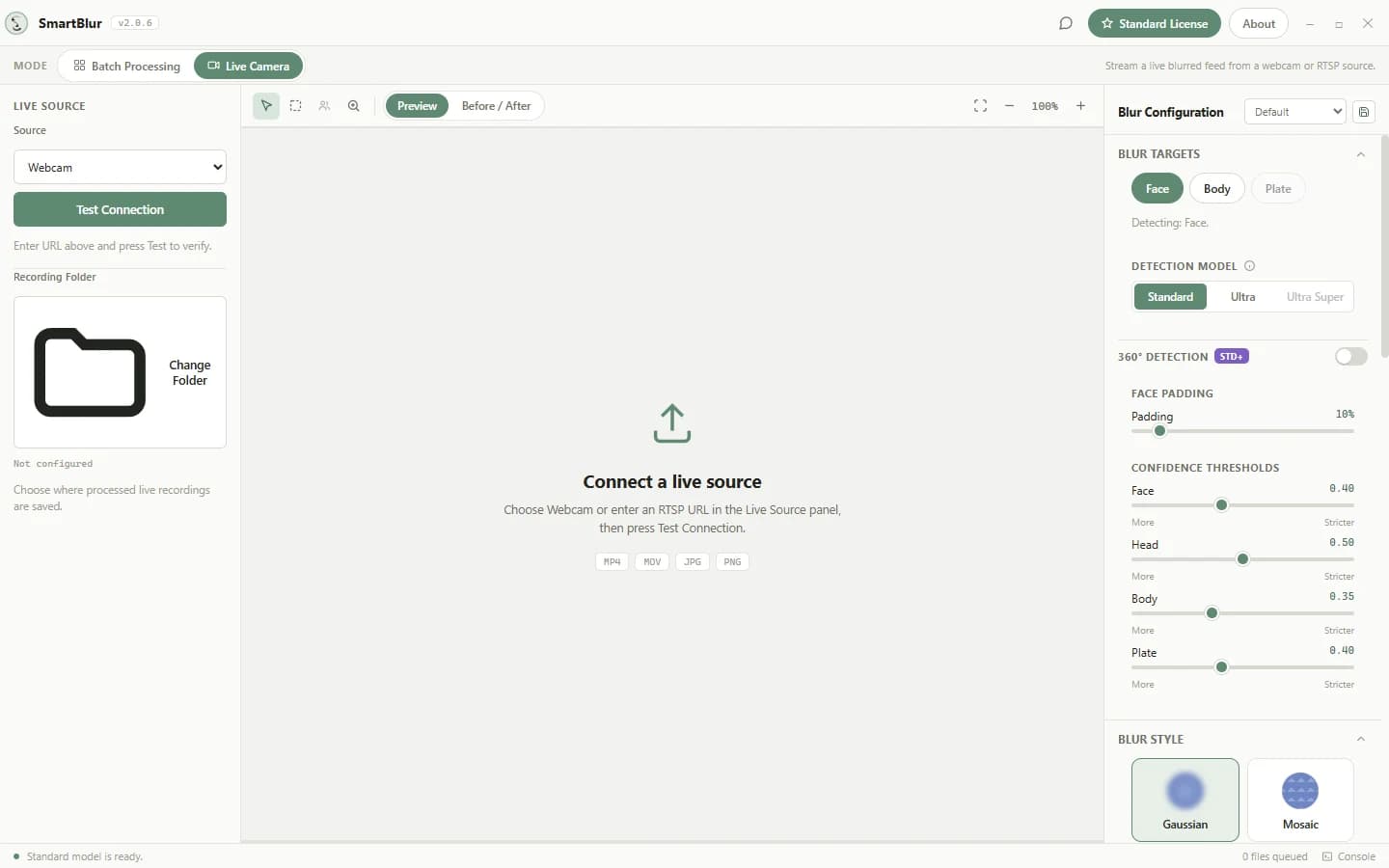
- Select Live Camera in the Mode bar.
- In Live Source, choose Webcam.
- Click Test Connection.
- Expect the button to become Stop Stream and processed frames to appear in the monitor.
- If no frames arrive, close Teams, Zoom, browser camera tabs, OBS, or other software using the camera, then test again.
SmartBlur currently tests the default camera, shown as Webcam 0. Windows camera privacy permission must allow desktop apps to use the camera; on macOS, SmartBlur requests Camera access when a webcam session starts.
To keep the person sharp while softening the scene behind them, follow How to Blur Your Webcam Background. Background Blur updates while the camera remains connected and uses the same final processed frame for preview and Pro recording; a supported Windows or macOS website installation can also send it through SmartBlur Camera.
Connect an RTSP stream (Pro)
RTSP/RTSPS input and processed live recording require Pro. If Standard is active, SmartBlur keeps the local webcam available and shows the Pro requirement when you choose RTSP.
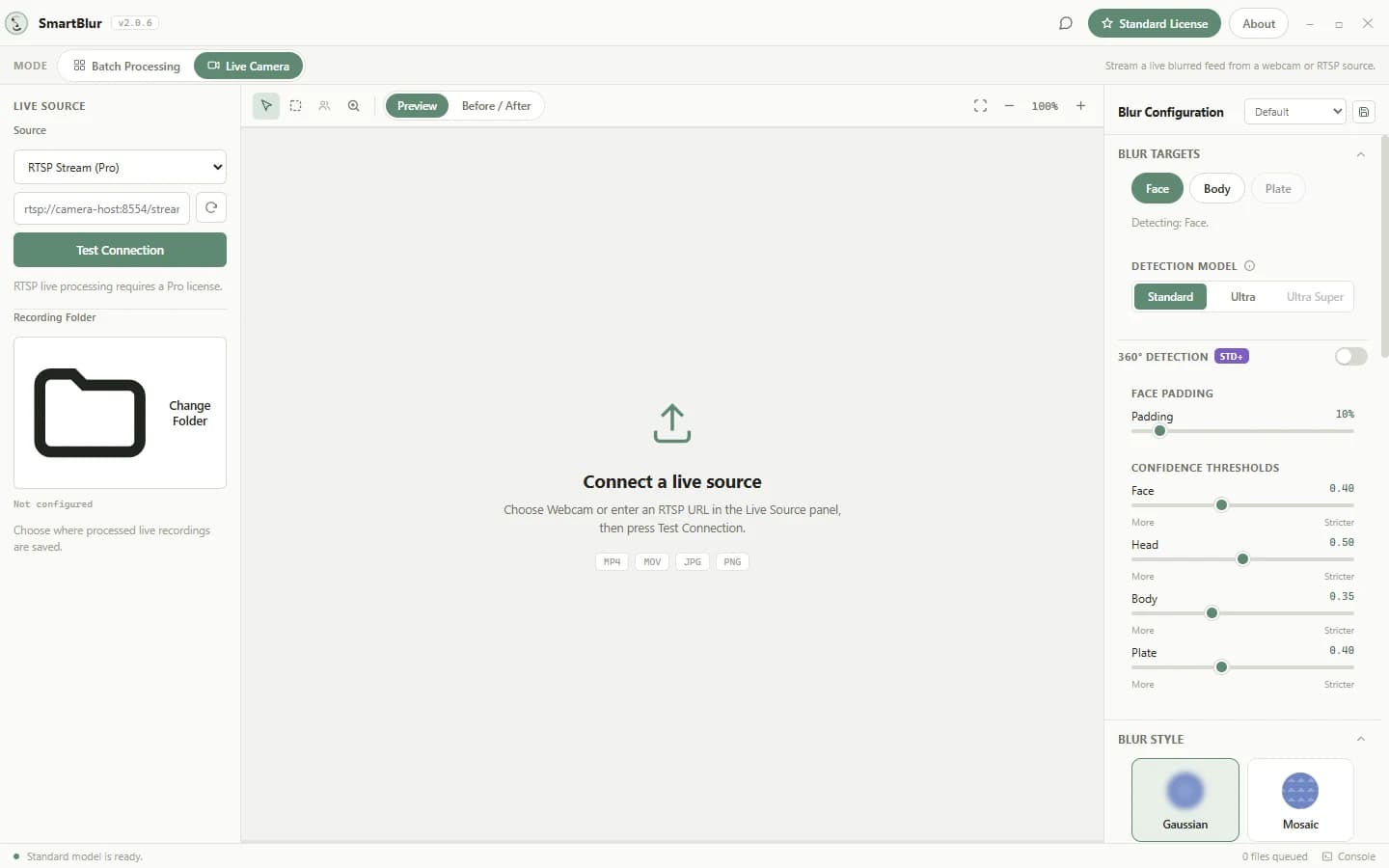
- Select Live Camera.
- Choose RTSP Stream… under Source.
- Enter the complete RTSP or RTSPS address. Example shape:
rtsp://camera-host:8554/stream. - Click Test Connection.
- Expect a live-session status followed by processed frames. Use Stop Stream to close the session.
SmartBlur validates the address before opening it. A blank value reports that an RTSP URL is required; an unsupported scheme reports that the address must start with rtsp:// or rtsps://.
Use SmartBlur Camera in another app
SmartBlur Camera is available with Standard and Pro when SmartBlur is installed from a supported Windows or macOS website build. The Microsoft Store package does not include SmartBlur Camera.
- Install or update SmartBlur from smartblur.app/download.
- Activate Standard or Pro, or start the 7-day Pro trial.
- Open Live Camera, connect a webcam, and verify the processed preview. Pro can instead connect an RTSP/RTSPS source.
- Enable the SmartBlur Camera output in SmartBlur.
- In Zoom, Teams, Google Meet, OBS, or another webcam app, select SmartBlur Camera as the camera.
- Keep SmartBlur running and monitor the processed preview during the session.
On macOS 14+ Apple silicon, the supported website build installs SmartBlur Camera as a signed Core Media I/O system extension:
- Keep SmartBlur.app in Applications and open it from there.
- The first time you enable SmartBlur Camera, approve it in System Settings → Privacy & Security if macOS asks, then return to SmartBlur and enable it again. Restart only if macOS explicitly requests it.
- Quit and reopen the receiving app after approval so it refreshes its camera list, then select SmartBlur Camera.
If SmartBlur Camera is not listed, confirm that you installed the supported website build, keep a processed preview running, reopen the receiving app, and check Troubleshooting. Always review the live preview because detection is probabilistic and can miss a subject.
What happens when you change settings live?
| Change | Result during a running webcam/RTSP session |
|---|---|
| Face, Body, Plate | The next processed frames use the new target set. No reconnect. |
| Confidence | The selected target becomes more or less strict on following frames. No reconnect. |
| Face padding | The blur region expands or contracts on following frames. No reconnect. |
| 360° Detection | Rotated/angled detection is enabled or disabled on following frames. It may reduce frame rate. |
| Gaussian, Mosaic, Solid Shape, Overlay Image | The blur rendering changes on following frames, including layered face accessories. No reconnect. |
| Intensity | Blur strength changes on following frames. No reconnect. |
| Background Blur: Enabled and Strength | Portrait background blur turns on, off, or changes strength on following frames. No reconnect. See the Background Blur guide for first-use model setup and plan limits. |
| Standard → Ultra → Ultra Super | The connection remains open while SmartBlur briefly loads the requested model. Ultra is available on Standard and Pro; Ultra Super requires Pro. |
| Preset | All settings in that preset are sent together; a model change can create a short pause. |
SmartBlur waits about 400 ms after the latest control movement before applying the newest live configuration. This prevents a flood of updates while you drag a slider. The status area shows Applying live settings, then confirms the model used. If an update fails, the session stays visible and the error is reported; correct the setting or stop and retest the source.
Accuracy tuning while watching the stream
Use a scene that represents the real camera: typical distance, lighting, crowding, motion, and angle.
- Start with the appropriate preset—Default, Street Footage, or Office CCTV.
- Enable only the targets required by your privacy policy.
- If a face/body/plate is missed, lower that target’s confidence by about 0.05 and watch several seconds.
- If ordinary objects are blurred, raise that target’s confidence by about 0.05.
- Move from Standard to Ultra when misses remain in small, angled, crowded, or low-quality subjects.
- Use Ultra Super when maximum coverage matters more than latency/frame rate.
- Enable 360° for rotated, overhead, sideways, or unusual camera angles.
- Increase padding when a moving subject escapes the blur edge.
Do not compensate for missed detections only by increasing blur intensity. Intensity changes how a detected box looks; confidence/model/360° determine whether a subject is detected, while padding determines how much area around it is covered.
Record processed live video (Pro)
Processed live recording requires Pro for either webcam or RTSP input.
- Click Change Folder and choose an access-controlled destination.
- Start and verify the live session.
- Start recording from the live controls.
- SmartBlur writes processed frames to a video in the selected folder.
- Stop recording before stopping the stream so the video can be finalized cleanly.
- Review the saved recording before sharing it.
If no folder is selected, SmartBlur refuses to start recording and asks you to choose one. A recording error stops the recorder and is shown in the status/console instead of silently claiming success.
Common questions
Can SmartBlur Standard blur a webcam?
Yes. Standard and Pro can process a local webcam and show the redacted preview inside SmartBlur. Free does not include live webcam input.
What does Pro add for live cameras?
Pro adds RTSP/RTSPS network-camera input and processed live recording. Those two capabilities remain unavailable on Standard; Standard's local webcam workflow stays available.
Does the Microsoft Store package include SmartBlur Camera?
No. The Store package supports in-app local webcam processing on Standard and Pro but does not include SmartBlur Camera. Use the supported signed Windows or macOS website build when Zoom, Teams, Meet, OBS, or another compatible app needs to receive the processed feed as a camera device.
How do I make SmartBlur Camera appear on macOS?
Install the signed, notarized, and stapled current SmartBlur DMG from the download page, drag SmartBlur to Applications, and enable SmartBlur Camera from a running processed preview. Approve the Core Media I/O extension under System Settings → Privacy & Security if prompted, then quit and reopen the receiving app before selecting SmartBlur Camera.
RTSP troubleshooting
“Waiting for live frames from the configured source”
The session opened but no usable frame reached the preview yet.
- Verify the full path/channel in a trusted RTSP player.
- Confirm the camera is online and the PC can reach its IP and port.
- Check username/password and URL-encode special characters used inside credentials.
- Try the camera’s main and sub-stream endpoints; unsupported codecs or very large streams may fail or perform poorly.
- Stop the session, wait a moment, and test again after correcting the URL.
Connection fails immediately
- The field must not be blank.
- The scheme must be
rtsp://orrtsps://. - Firewall/VPN/VLAN rules must allow the PC to reach the camera port.
- Some cameras limit concurrent viewers; close another RTSP client.
Frames appear but are delayed or slow
- Try Standard before Ultra or Ultra Super.
- Enable only needed targets—Body and Plate add work.
- Turn off 360° unless the camera angle needs it.
- Use the camera sub-stream or a lower resolution/frame rate if available.
- Prefer a wired network for fixed cameras.
Settings appear unchanged
- Stop dragging the control and wait for Live settings applied.
- Check the target is enabled; its threshold has no visible effect when that target is off.
- A model change takes longer than padding, confidence, target, or style changes.
- Review the status/console for a settings failure. If necessary, stop and retest the source.
Security and privacy
- Processing is local to the SmartBlur desktop worker; the camera stream is not uploaded for AI processing.
- An RTSP URL may contain credentials. Treat logs, screenshots, and screen recordings that show the URL as secrets.
- Prefer RTSPS or an isolated trusted network when the camera supports it.
- Store recordings in a protected folder and define a retention/deletion policy.
- Use a human review step for high-risk publication, compliance, or safety workflows.