
Install & make your first edit
At a glance
Download the desktop app, open a photo, choose what to hide, and save a separate copy. Try a simple image before working on sensitive footage.
Step by step
- 01
Choose your installer. Use Windows 10/11 64-bit or macOS 14+ on Apple silicon. Download the website build for SmartBlur Camera support.
- 02
On Windows, run the setup wizard. On Mac, open the DMG and drag SmartBlur into Applications. Connect to the internet for initial activation.
- 03
Add a photo. Turn on the relevant targets and inspect the processed preview. Adjust the effect and coverage, then add manual regions where needed.
- 04
Choose an output folder and save the processed copy. Open that copy outside SmartBlur and check the whole image before sharing.
Before you share
A successful export is not a privacy review. Check background faces, reflections, screens, name tags, and any details your audience should not see.
Full desktop guide (English)
Blur Your First Photo
Expected result
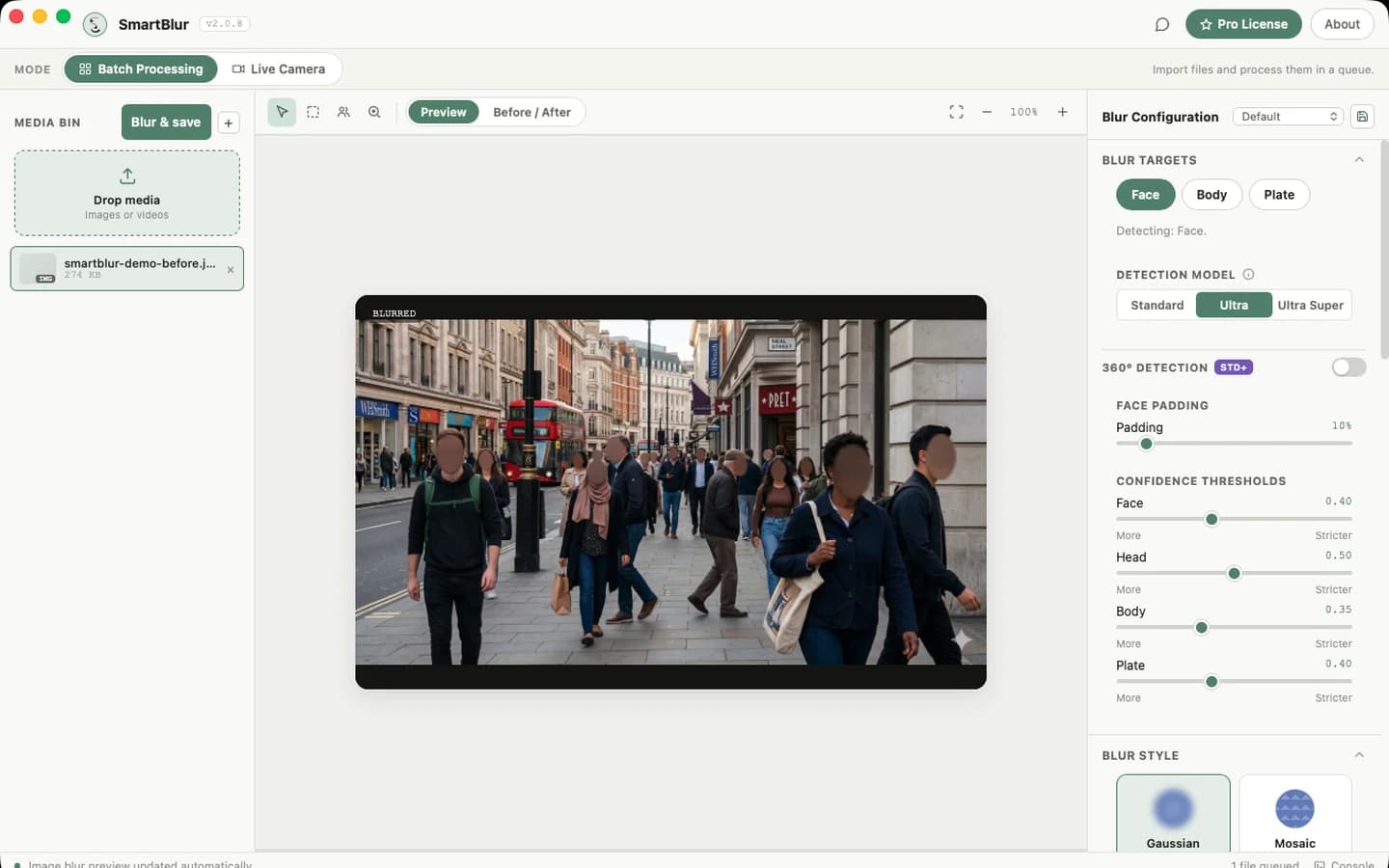
If you add a photo, SmartBlur places it in the Media Bin, automatically creates a processed preview, and reports Auto-processed filename. Changing detection or blur controls automatically refreshes the selected image preview. The original file remains unchanged.
Steps
- Open SmartBlur and stay in Batch Processing.
- Click Drop media or +, then select a JPG or PNG. You can also drag the file into the Media Bin.
- Wait for the processed preview and status confirmation.
- Start with Face. Add Body when the scene requires it; Plate detection requires Pro.
- Use Preview to inspect the result and Before & After to compare it with the source.
- If something is missed, lower its confidence slightly. Standard and Pro can change from the Standard detector to Ultra; Ultra Super requires Pro and can improve difficult-scene coverage, but no model guarantees every detection.
- Increase Face Padding if the blur does not cover enough area around a detected face.
- Choose Gaussian, Mosaic, Solid Shape, or Overlay Image and adjust Intensity.
- Set the Output options, then click Process.
- Open the saved result and review it before sharing.
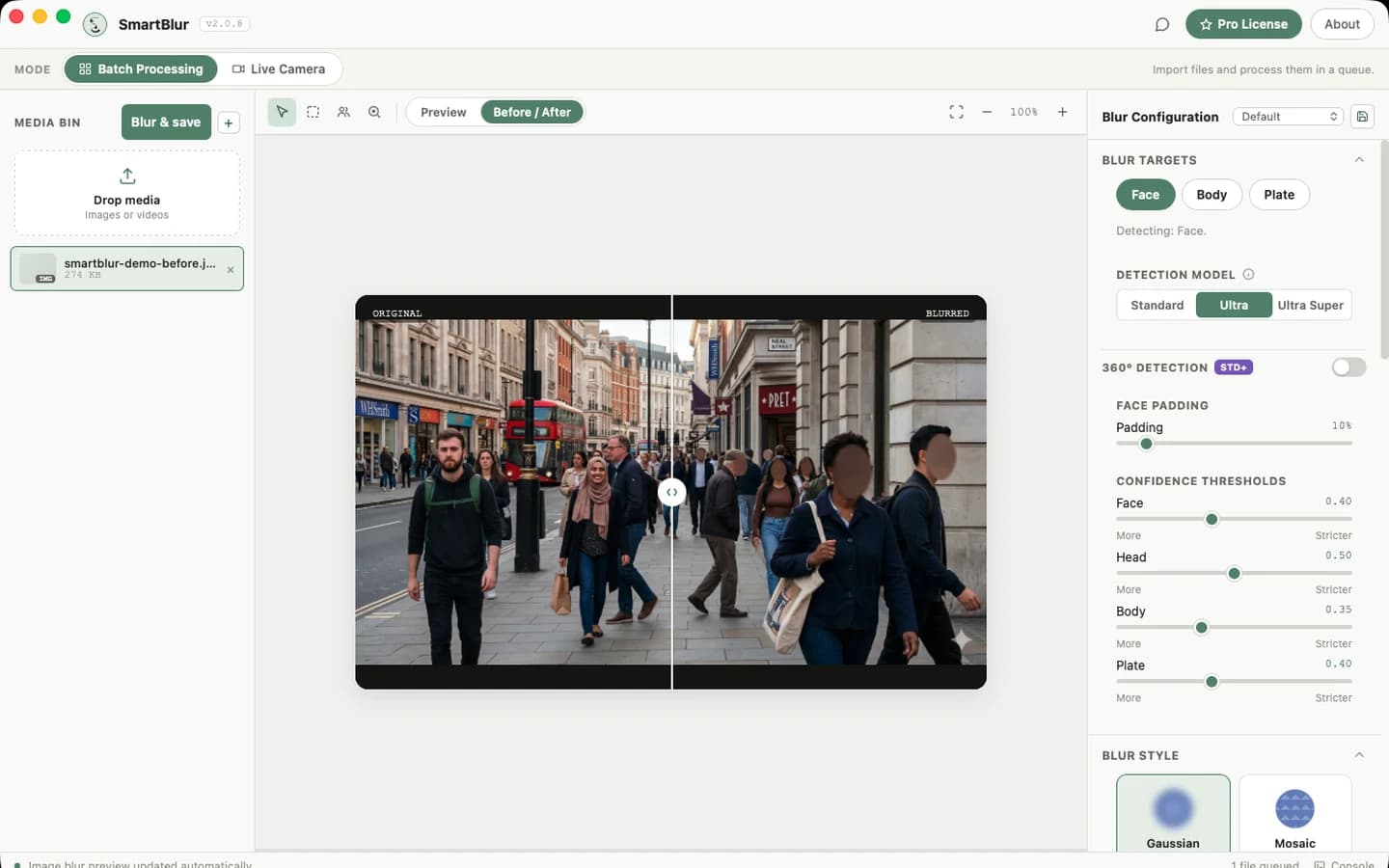
Lower confidence means more detections and potentially more false positives. Higher confidence is stricter and may miss small, angled, dark, or obstructed subjects.
Good starting decisions
| Situation | Start with |
|---|---|
| Clear portrait or a few large faces | Default preset, Standard model |
| Office/security camera | On Standard or Pro, start with Office CCTV/Ultra, then review |
| Street, crowd, cars, distant subjects | On Pro, test Street Footage/Ultra Super and review Plate detections |
| Missed small or angled subjects | Lower the relevant threshold by 0.05; on Standard or Pro, then try Ultra |
| Too many false positives | Raise only the affected target threshold by 0.05 |
| Blur box is too tight | Increase padding; do not rely on intensity alone |
Next: read the Desktop Workspace, AI Detection, Face Accessories, or the Webcam & RTSP guide for Standard webcam and Pro RTSP workflows.