
Blur Your Webcam Background
Background Blur keeps a person sharp while softening the live scene behind them. It is available in Live Camera mode on Windows 10/11 x64 PCs and macOS 14+ Apple silicon M1–M5 Macs: Standard and Pro can use it with a local webcam, while Pro also supports RTSP/RTSPS input and processed live recording. Free and the browser app do not include live camera input.
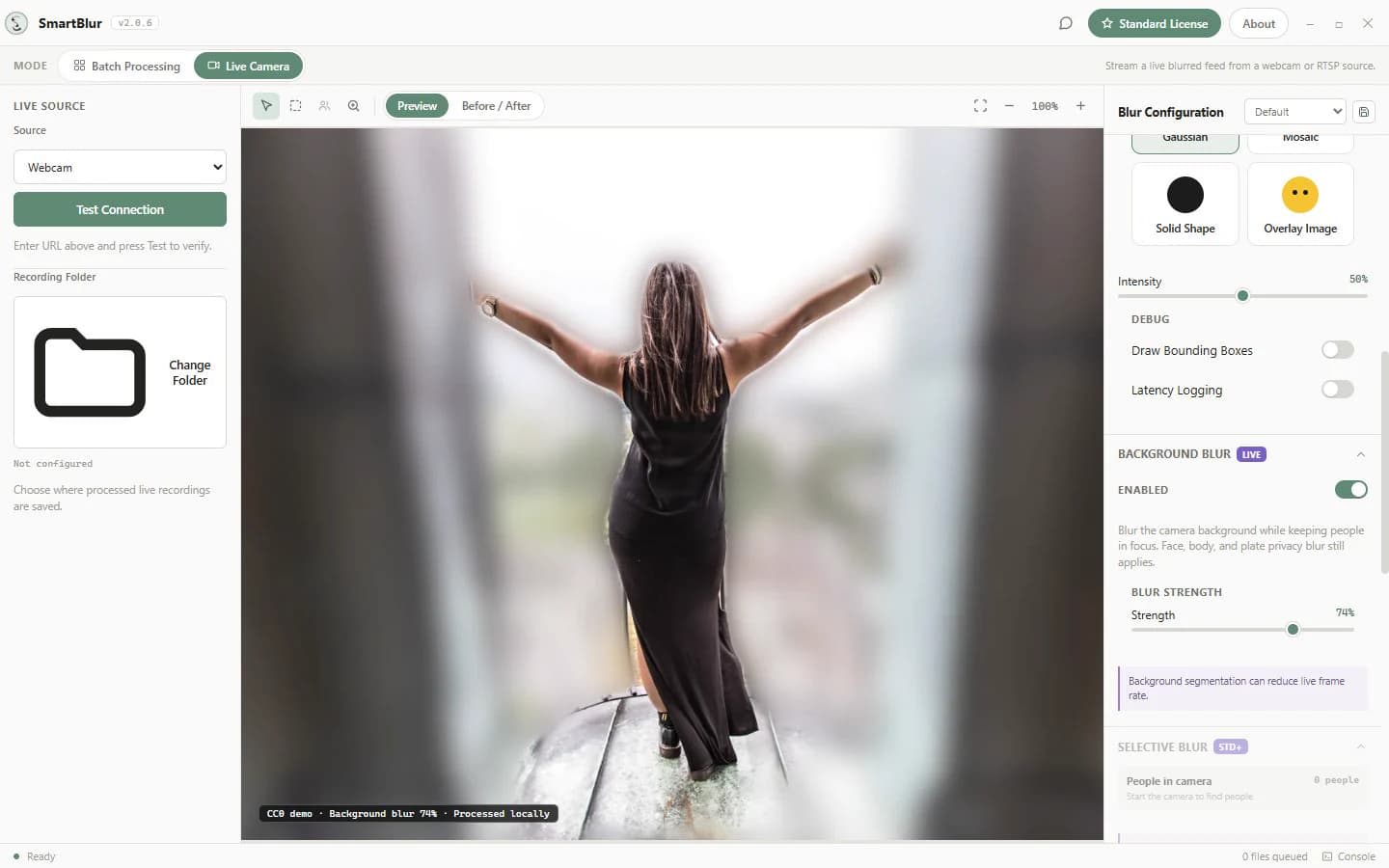
See the processed result
These images use the same CC0 portrait by Wendelin Jacober. The result was produced locally by SmartBlur's shipping portrait-segmentation pipeline at 74% strength; it is representative evidence, not a promise that every scene will segment identically.
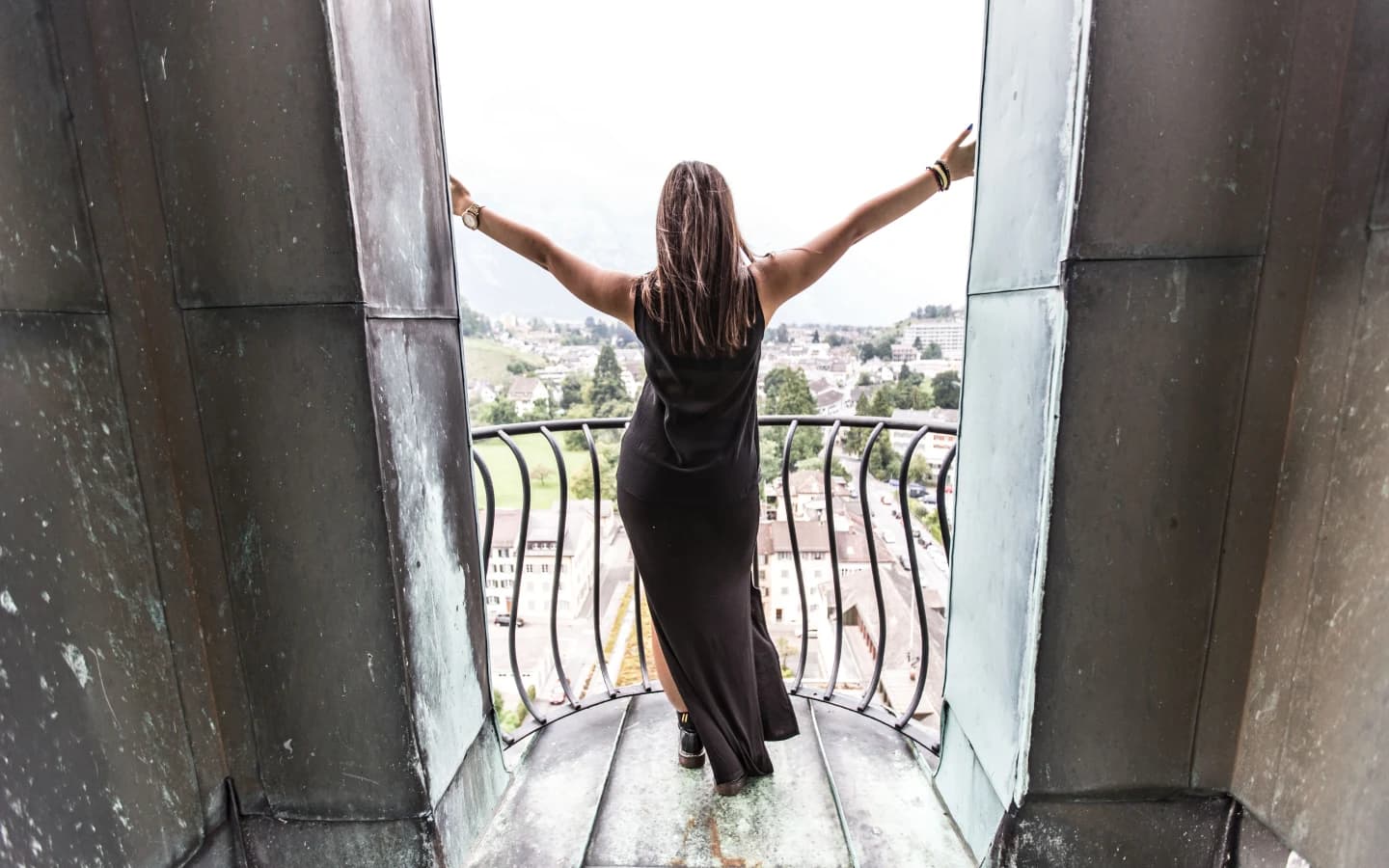
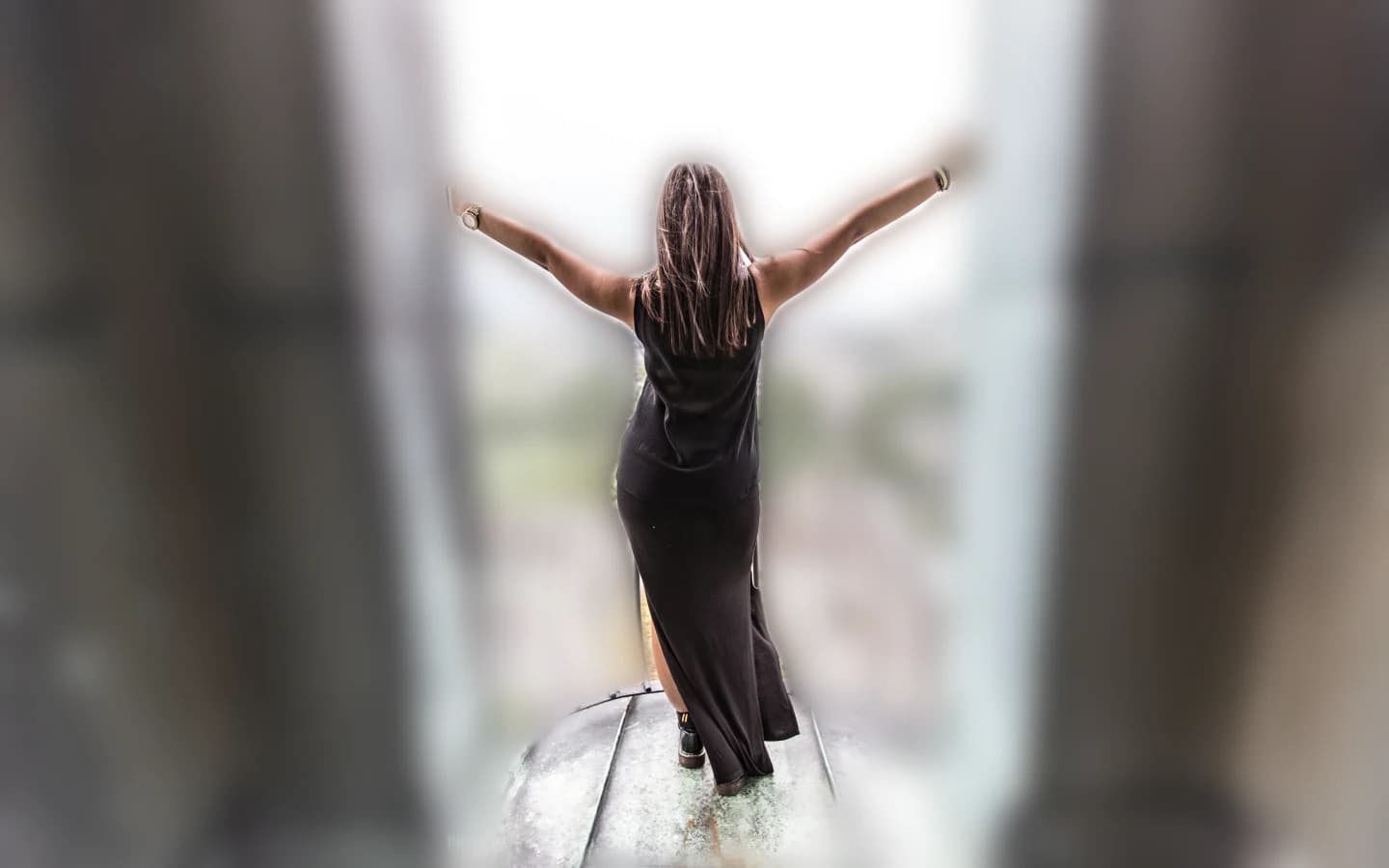
Plan, source, and output requirements
| Capability | Free | Standard | Pro |
|---|---|---|---|
| Local webcam background blur | No | Yes | Yes |
| RTSP/RTSPS background blur | No | No | Yes |
| Processed live recording | No | No | Yes |
| SmartBlur Camera output | No | Windows/macOS website builds | Windows/macOS website builds |
The Microsoft Store package supports the in-app processed preview on Standard and Pro, but it does not include SmartBlur Camera. Use a supported signed Windows or macOS website build when Zoom, Teams, Google Meet, OBS, or another compatible app needs to receive the processed feed as a camera. Background Blur is not available in the browser runtime.
How to blur the background
- Open SmartBlur. Open the installed SmartBlur desktop app on a supported Windows PC or Apple silicon Mac and activate Standard or Pro, or use the 7-day Pro trial.
- Connect a live source. Select Live Camera. Choose Webcam on Standard or Pro, or RTSP Stream on Pro, then click Test Connection and wait for a processed preview.
- Enable the feature. Open Background Blur and turn on Enabled. On first use, allow SmartBlur to download and verify the portrait segmentation model.
- Tune the strength. Move Strength from 0 to 100 while watching the processed preview. Turn Enabled off when background blur is not needed so segmentation does not continue running.
- Add privacy effects when needed. Configure only the plan-supported privacy targets you need. Face and body are available on Standard and Pro; plate detection and processed live recording require Pro.
- Route and monitor the result. On a supported Windows or macOS website installation, you can enable SmartBlur Camera and select it in the receiving app. On every platform, monitor the in-app processed result for the entire session.
Changes to Enabled and Strength apply to following frames without reconnecting the camera. A strength of 0 produces no visible background blur, but segmentation still runs until Enabled is turned off.
First use and local processing
The first time you enable Background Blur, SmartBlur downloads the pinned PPHumanSeg portrait-segmentation model from its official source. The download is about 6.2 MB, is checked against the expected SHA-256 digest, and is stored only as an encrypted local cache. A network connection is therefore required for first-time model setup; later use can reuse the verified cache offline.
Camera frames remain on the Windows PC or Mac for portrait segmentation and blurring. Download, activation, periodic license validation, feedback, and update checks are separate network-connected operations. RTSP is itself a network camera input.
What receives the blurred background?
SmartBlur creates one final processed live frame. The in-app preview shows that frame, Pro recording saves it, and a supported Windows or macOS website installation can publish it through SmartBlur Camera. Plan-supported face and body privacy effects are applied after background blur; license plate detection requires Pro.
Always verify the in-app processed preview before enabling recording or SmartBlur Camera. Keep monitoring it throughout a sensitive call, stream, or recording.
Quality and performance tips
- Use even lighting and enough contrast between the person and the background.
- Keep the camera stable and avoid placing hair, hands, or clothing against a similarly colored background.
- Watch edges during fast motion, turns, partial occlusion, and when someone enters or leaves the frame.
- Use only the detection targets your workflow needs. Plate detection requires Pro and adds processing work.
- If performance is limited, test a lower camera resolution and use the Standard detector before enabling more expensive detection options.
- Turn Background Blur off when it is not needed; moving Strength to 0 alone does not stop portrait segmentation.
Portrait segmentation is probabilistic. Strong background blur can reduce visible detail, but it does not guarantee that every object, edge, reflection, screen, or document behind a person is concealed. Use an intentional scene and a human review step for sensitive work.
Troubleshooting
The status says the model is downloading or preparing
Keep SmartBlur open and connected to the internet for the first setup. If setup fails, check the connection, retry Enabled, and review the live status message. The verified encrypted cache is reused after a successful setup.
Enabled is on but the scene is not blurred
Wait for the settings-applied status, then watch several new frames. If an initialization error is shown, turn Enabled off, stop and retest the source, then enable it again after the error is resolved. The backend keeps the previous unblurred live settings when a new background-blur model cannot be initialized.
Person edges look soft or incomplete
Improve front lighting, increase separation from the background, reduce fast movement, and retest at the normal camera angle. Hair, fingers, transparent objects, motion blur, and similar foreground/background colors are difficult segmentation cases.
Preview speed drops
Turn off unneeded detection targets and 360-degree detection, try the Standard detector, or lower the source resolution. Background Blur adds portrait segmentation work; turning the feature off removes that work from following frames.
Common questions
Is background blur available on SmartBlur Standard?
Yes. SmartBlur Standard and Pro can blur the background of a local webcam. Free does not include live camera input. Pro also adds RTSP/RTSPS input and processed live recording.
Can background blur be sent to Zoom, Teams, or OBS?
Yes, when SmartBlur was installed with a supported Windows or macOS website build. Standard or Pro can send the processed feed through SmartBlur Camera to compatible apps such as Zoom, Teams, and OBS. The Microsoft Store package does not include SmartBlur Camera.
Does background blur work with RTSP/IP cameras?
Yes, on Pro. Standard supports local webcams but not RTSP/RTSPS input. Free does not include live camera input.
Is my camera uploaded to generate background blur?
No. Camera frames are processed locally by the SmartBlur desktop worker. The first time Background Blur is enabled, SmartBlur uses the network to download and verify the portrait segmentation model; activation, license validation, feedback, and update checks are separate network operations.
Does background blur guarantee that no background details are visible?
No. Portrait segmentation is probabilistic, so motion, lighting, hair, edges, camera angle, and hardware can affect the result. Monitor the processed preview and review sensitive output before sharing or recording.